
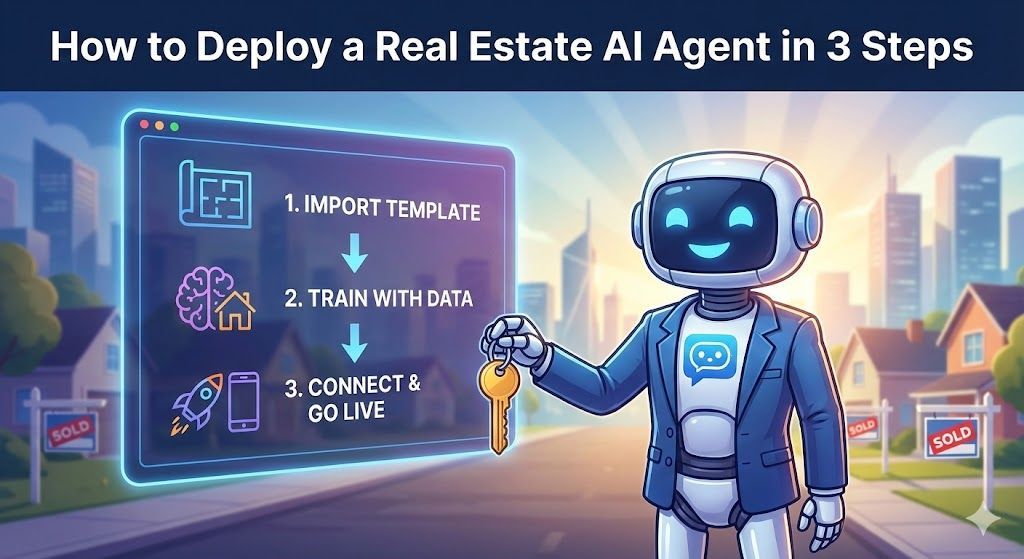
Learn how to deploy a powerful, 24/7 AI inside sales agent to capture and qualify leads in 3 simple steps—no coding required.

Learn the root causes of AI hallucinations and follow our 4-step troubleshooting guide to ensure your bot provides accurate, reliable answers every time.
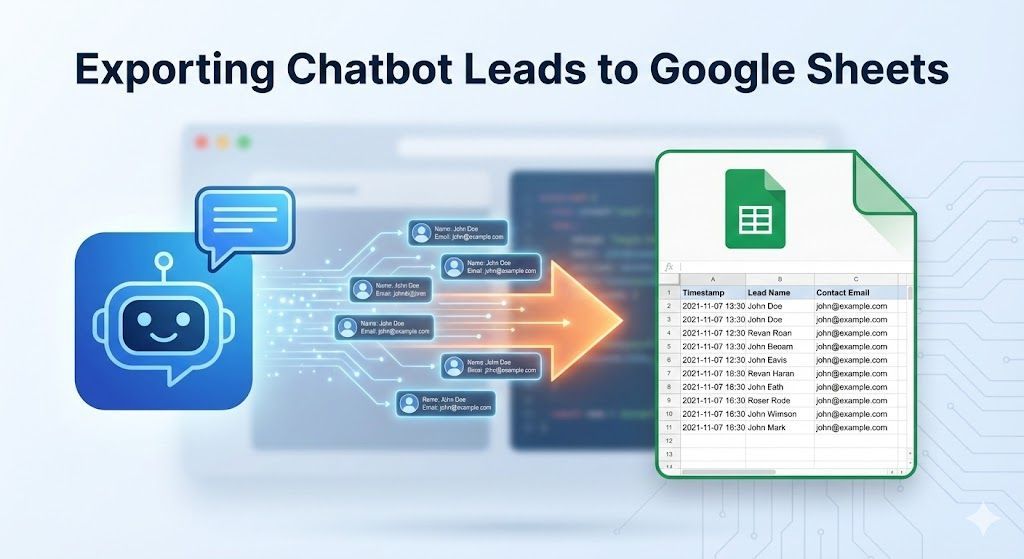
Learn the simple, no-code method to automatically export every new AI lead directly into a Google Sheet for easy management and sharing.
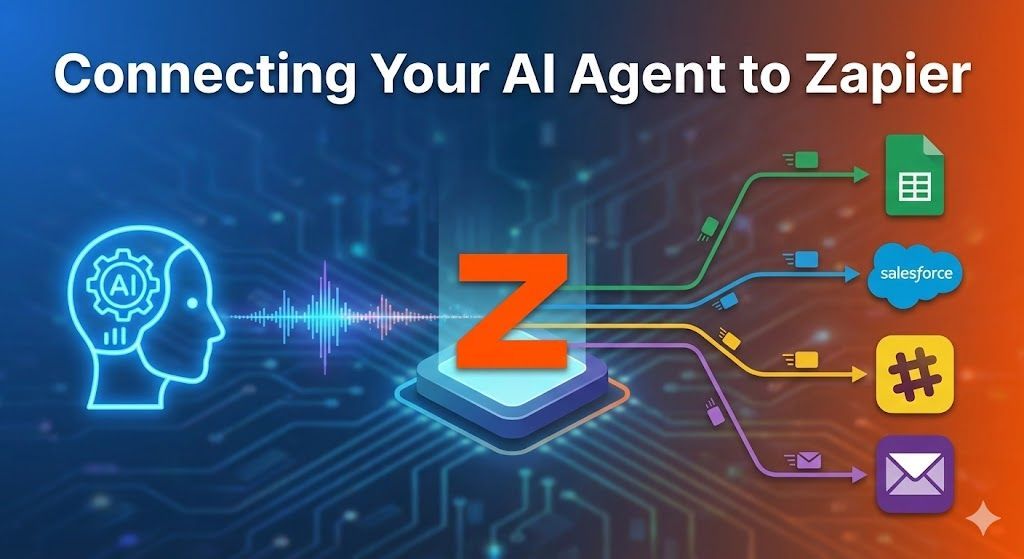
Unlock the full power of your AI chatbot. Learn how to connect your Sky Enterprise AI Agent to over 6,000+ apps using Zapier webhooks to automate tasks, sync data, and streamline workflows.
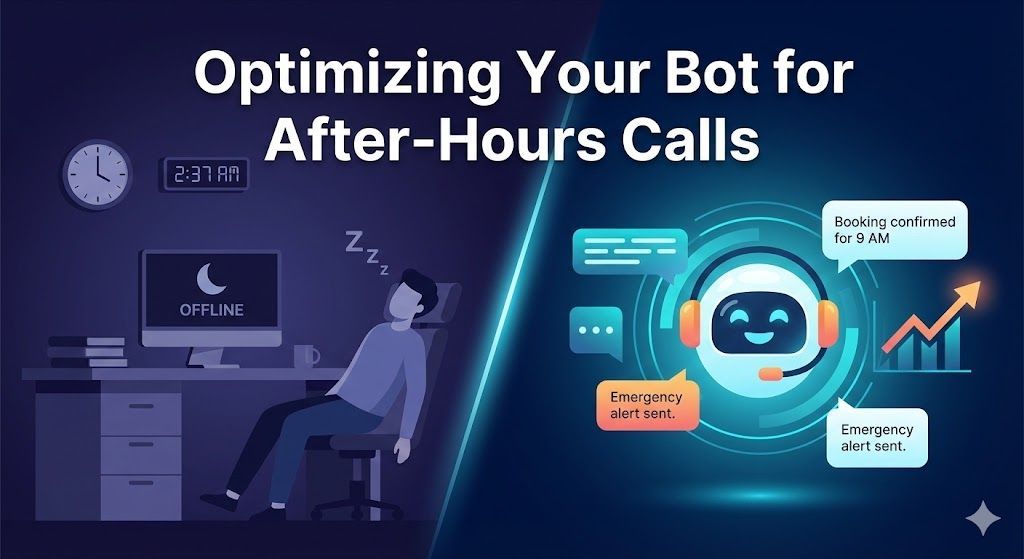
Missed calls cost you money. Learn how to optimize your AI chatbot to handle after-hours inquiries, capture emergency leads, and set clear customer expectations while you sleep.
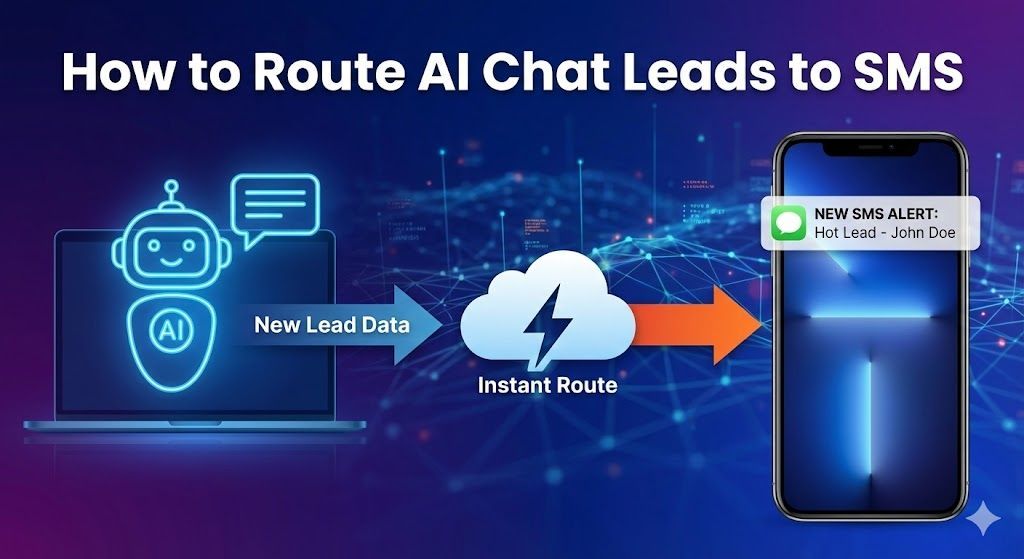
Stop missing hot leads buried in your inbox. Learn how to set up instant SMS text notifications whenever your AI chatbot captures a new prospect, ensuring you can respond in seconds, not hours.
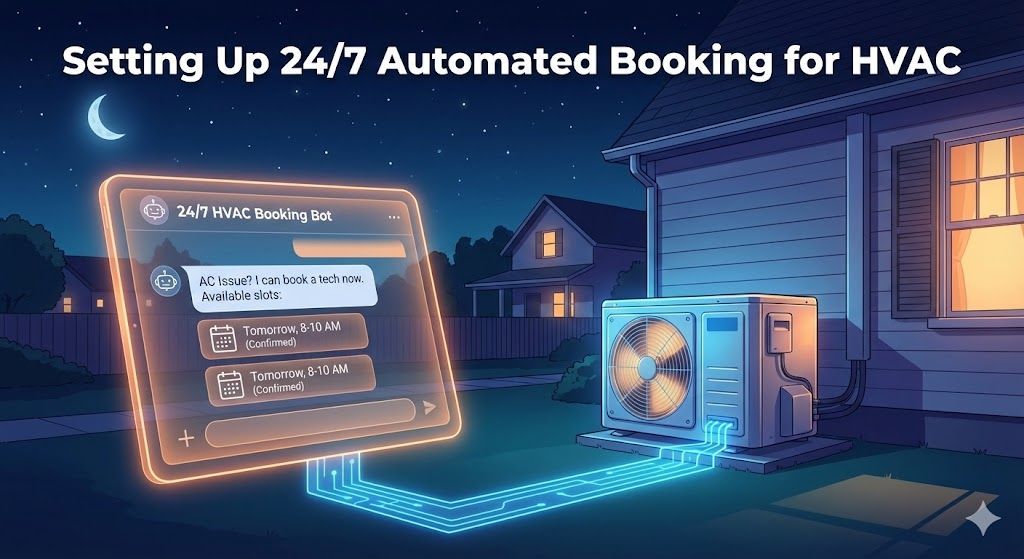
Stop missing calls and start booking jobs in your sleep. Learn how to set up a 24/7 AI chatbot that qualifies HVAC leads and schedules appointments directly on your calendar, completely on autopilot.
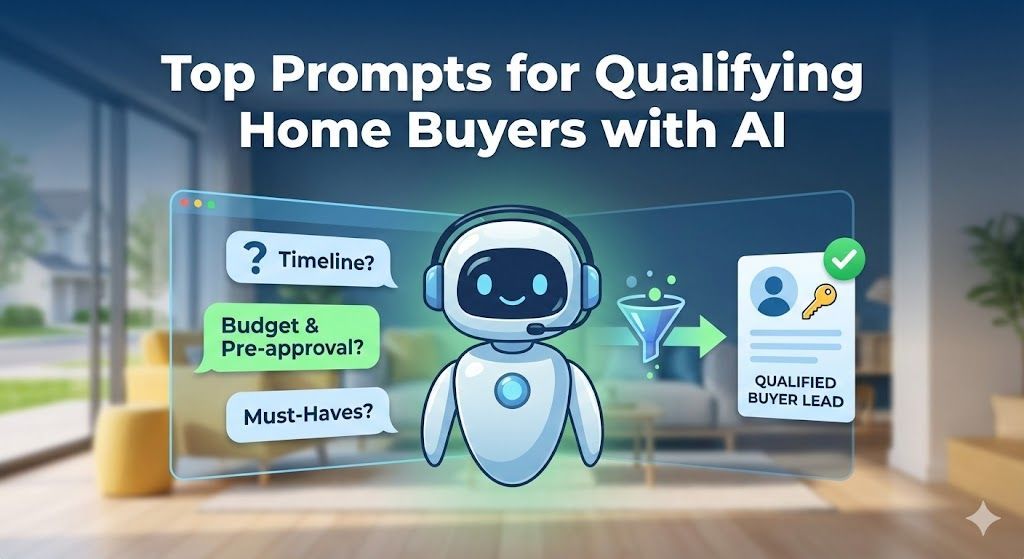
Discover the best real estate chatbot prompts to automatically qualify home buyer leads 24/7. Stop wasting time on tire-kickers and focus on sales-ready prospects.
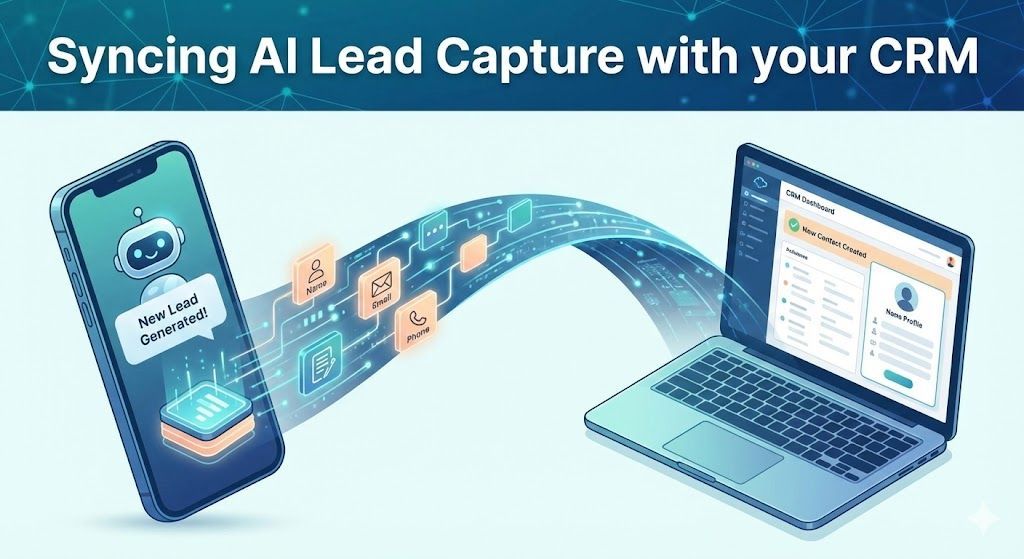
Learn how to automate your lead flow by connecting your AI chatbot directly to your CRM. Stop manual data entry and start nurturing leads instantly using webhooks and integration tools like Zapier.
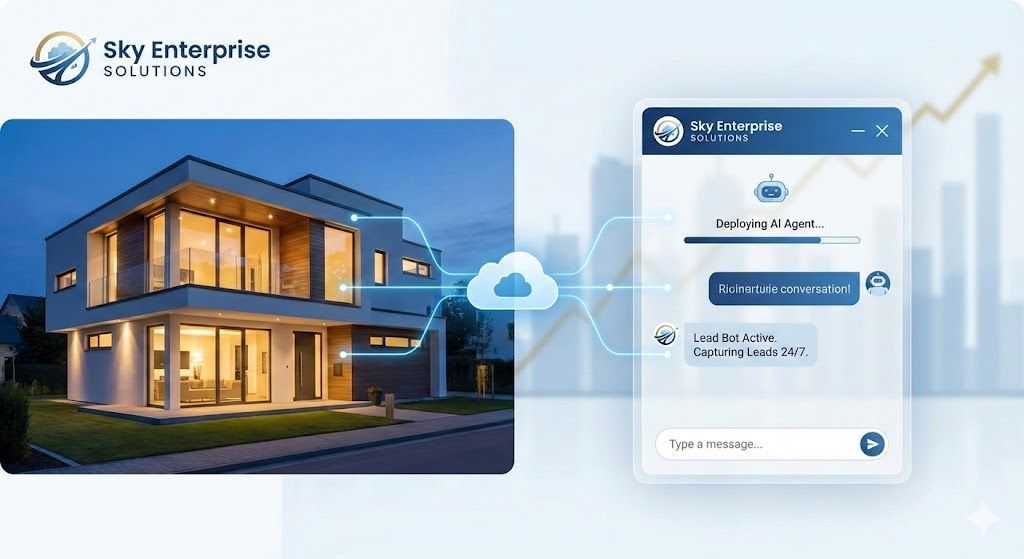
Learn how to deploy a turnkey Real Estate AI chatbot in minutes. Skip the complex logic mapping and start capturing, qualifying, and syncing leads to your CRM 24/7.