Syncing AI Lead Capture with your CRM: The Complete Guide

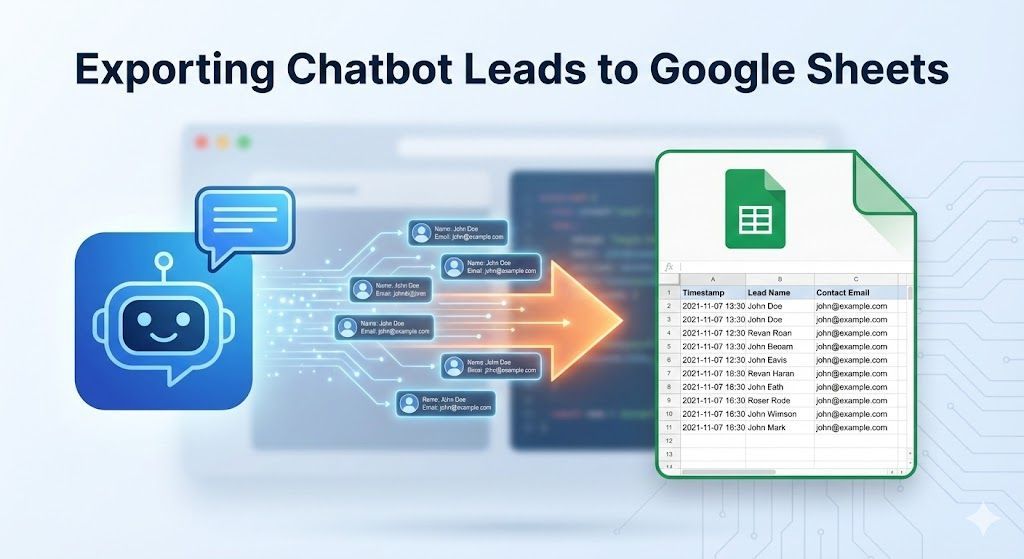
You've successfully deployed your Real Estate AI Lead Bot and it's engaging visitors on your site 24/7. That's a huge win. But a lead is only valuable if it enters your sales pipeline immediately.
If your AI agent is capturing names, emails, and budgets, but that data is sitting in a chat history log, you have a "data silo." You or your team have to manually copy-paste that information into your Customer Relationship Management (CRM) system. This delay kills conversion rates.
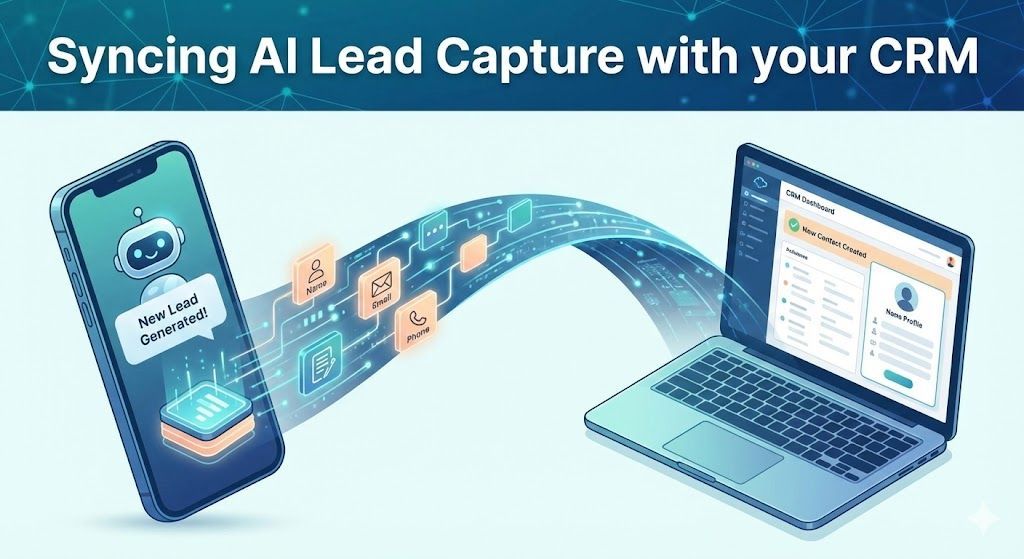
The solution is to create a real-time sync between your AI bot and your CRM.
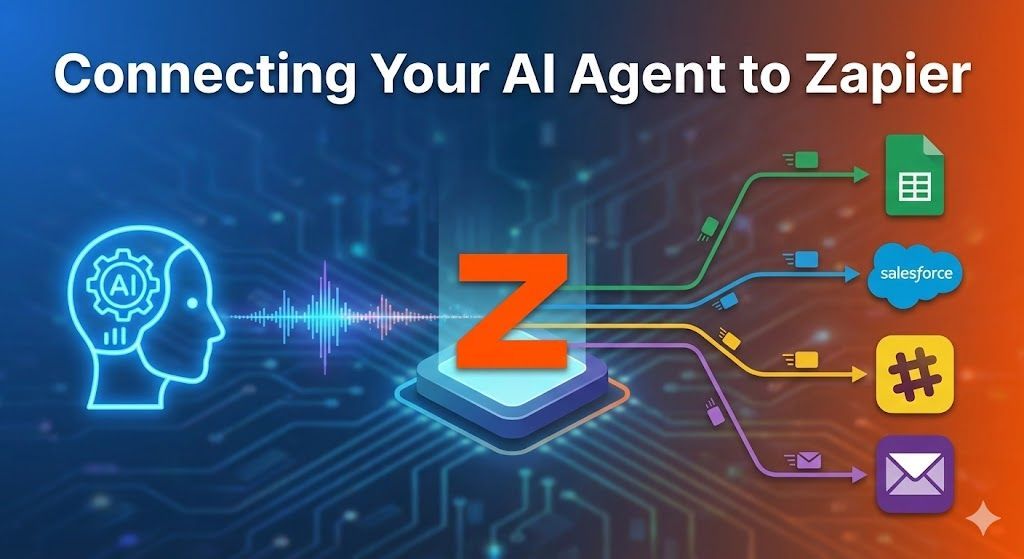
This guide will walk you through the exact steps to connect your Sky Enterprise AI Agent to platforms like HubSpot, Salesforce, Follow Up Boss, or Pipedrive using a simple integration tool.
Prerequisites
Before we begin, make sure you have the following ready:
- Your Active AI Bot: A deployed Sky Enterprise template (e.g., on Voiceflow or Landbot).
- Your CRM Account: The platform where you manage your contacts.
- An Integration Tool: We recommend a free account on Zapier or https://www.google.com/search?q=Make.com to acting as the "bridge" between the two systems.
Step 1: Understand the "Handshake" (Webhooks)
How does a chatbot talk to a CRM? They use something called a Webhook.
Think of a webhook as a digital "tap on the shoulder." When your chatbot finishes qualifying a lead, it taps your integration tool on the shoulder and hands over a packet of data (Name: John, Budget: $500k, etc.). Your integration tool then takes that packet and places it neatly into your CRM.
The best part? Sky Enterprise templates come pre-wired for this. You don't need to build the API call; you just need to tell it where to send the data.
Step 2: Create the Trigger in Zapier
We'll use Zapier for this example as it's the most common tool, but the process is similar in https://www.google.com/search?q=Make.com.
- Log in to Zapier and click "Create Zap."
- For your Trigger, search for and select "Webhooks by Zapier."
- Choose the "Catch Hook" event and click Continue.
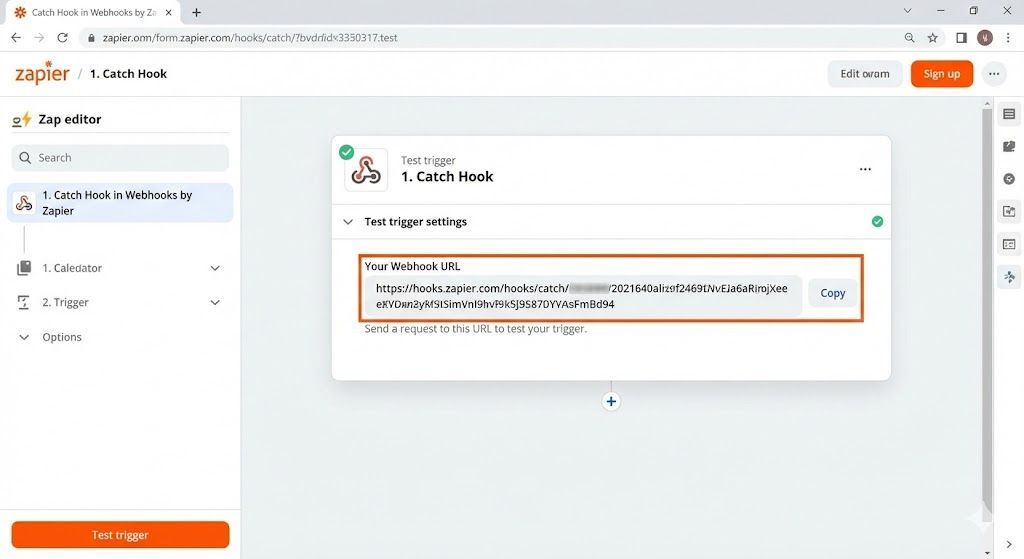
- Zapier will generate a unique Webhook URL (it looks like a long web address). Copy this URL to your clipboard.

Step 3: Configure Your AI Bot
Now, let's tell your bot where to send the leads.
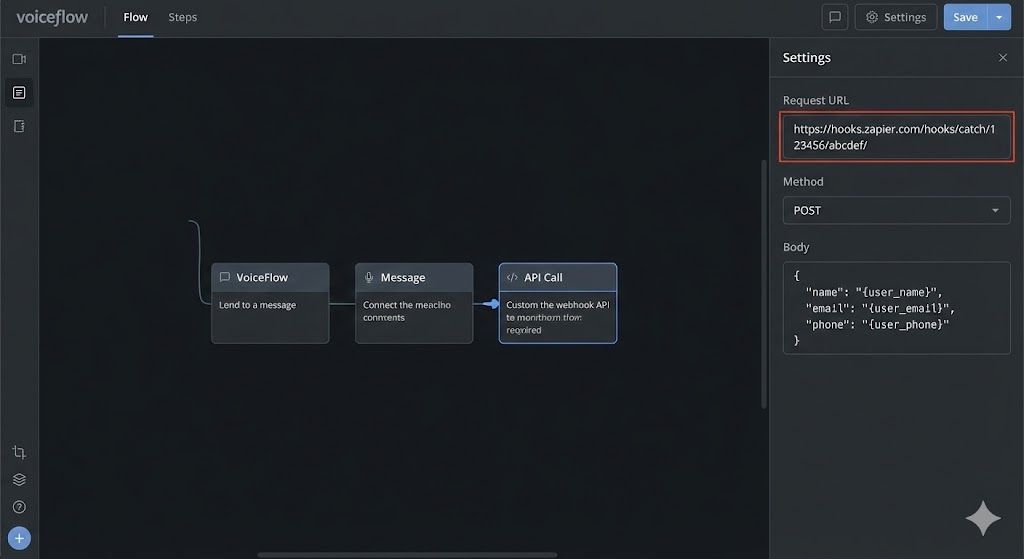
- Open your chatbot visual builder (e.g., Voiceflow) and load your Sky Enterprise project.
- Navigate to the end of your flow, right after the bot has collected all the user's information. You will see a pre-configured block labeled "API Call" or "Send to CRM."
- Click on this block to open its settings.
- In the URL field, paste the Webhook URL you copied from Zapier in Step 2.
- Set the method to POST.
- Ensure the "Body" of the request includes the variables you want to send (e.g.,
{ "name": "{user_name}", "email": "{user_email}" }). Note: Sky Enterprise templates have this pre-filled for you.

Step 4: Send Test Data
To make sure the connection works, we need to send a sample lead.
- Put your chatbot builder into "Run" or "Test" mode.
- Go through the conversation as if you were a customer, providing fake details (e.g., Name: "Test User", Email: "test@example.com").
- When you reach the end of the chat, the bot will fire the webhook.
- Go back to Zapier and click "Test trigger." You should see a request appear containing the "Test User" data. Great success!
Step 5: Map Data to Your CRM
Now Zapier has the data. The final step is telling it where to put it in your CRM.
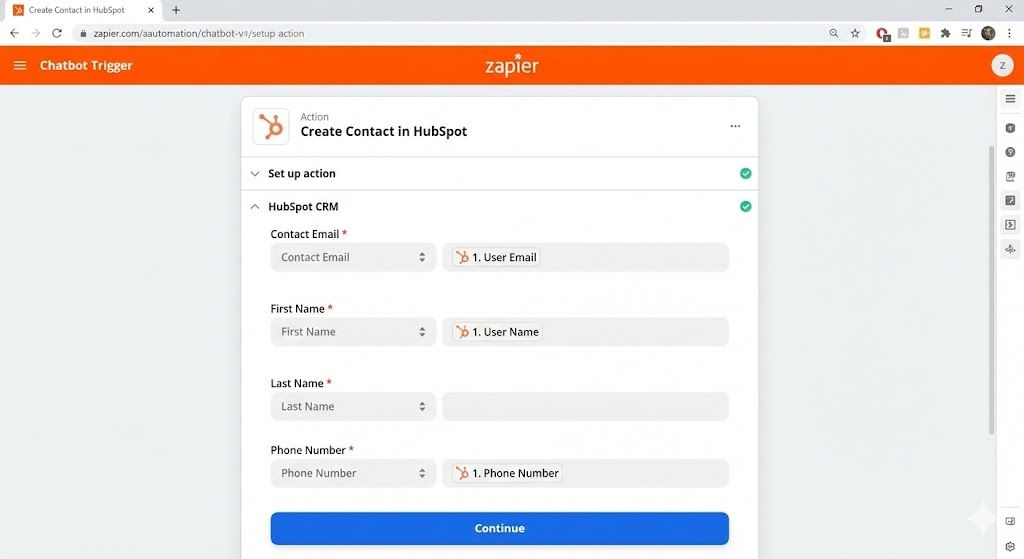
- In Zapier, click "Continue" to add an Action.
- Search for and select your CRM (e.g., HubSpot, Follow Up Boss).
- Choose the event "Create Contact" or "Create/Update Contact."
- Connect your CRM account when prompted.
- Now, you will "map" the fields. Click into the
Email field in your CRM setup and select the
user_emaildata point from the Zapier test step. Do the same for Name, Phone Number, and any other custom fields like Budget or Timeline.

Step 6: Turn It On
Once everything is mapped, click "Test step" to send the test contact to your CRM. Open your CRM and verify that "Test User" has been created with all the correct information.
If it looks good, click "Publish" in Zapier. Your integration is now live. Every new lead captured by your AI agent will instantly appear in your CRM, ready for your sales team to action.
What's Next?
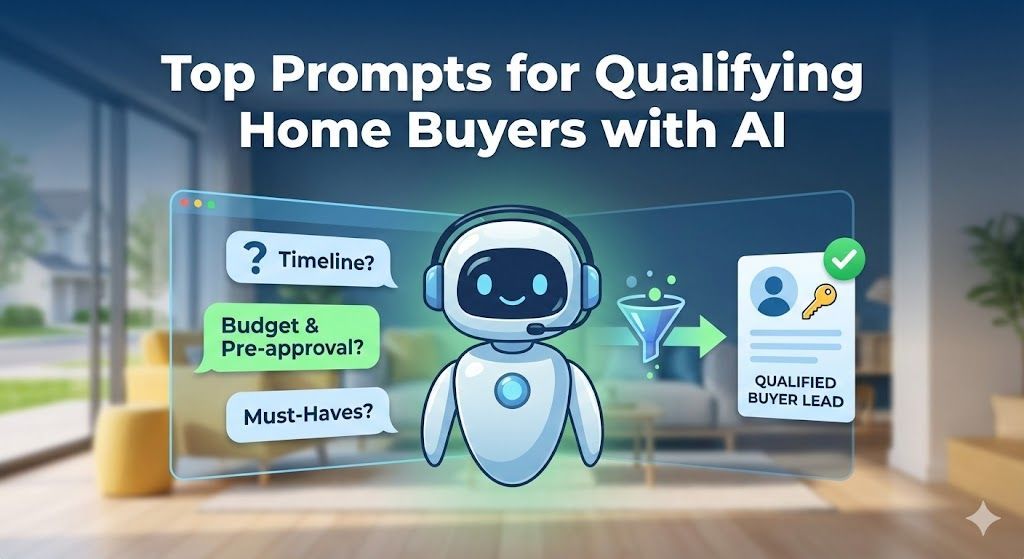
Now that your leads are flowing automatically, you need to ensure your bot is asking the right questions. Check out our guide on Top Prompts for Qualifying Real Estate Buyers to fine-tune your bot's persona and data collection capabilities.