How to Route AI Chat Leads to SMS for Instant Alerts

In sales, speed is everything. An old but famous study by Harvard Business Review showed that companies that try to contact potential customers within an hour of receiving a query are nearly 7 times more likely to qualify the lead than those that try even an hour later. Think about that.
If your AI chatbot is capturing a lead at 8:00 PM, but you don't see the email notification until 9:00 AM the next day, that lead has likely already moved on to a competitor who responded faster.
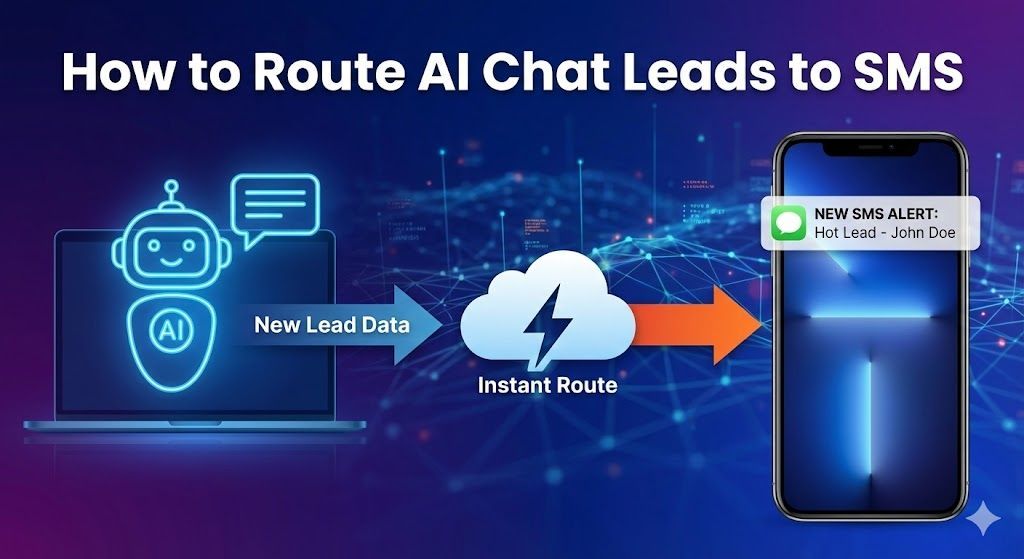
The solution is to move lead notifications out of your cluttered email inbox and onto the one device you look at constantly: your phone's lock screen.
This guide will show you how to set up an automated workflow that sends an instant SMS text message to you (or your sales team) the moment your AI agent captures a new lead.
Prerequisites
To set this up, you'll need three things:
- Your Active AI Bot: A deployed Sky Enterprise template that is collecting lead data.
- An Integration Tool: A free account on Zapier or https://www.google.com/search?q=Make.com.
- An SMS Provider Account: We recommend Twilio as it is the industry standard for programmatic SMS.
Step 1: The Setup (Similar to CRM Sync)
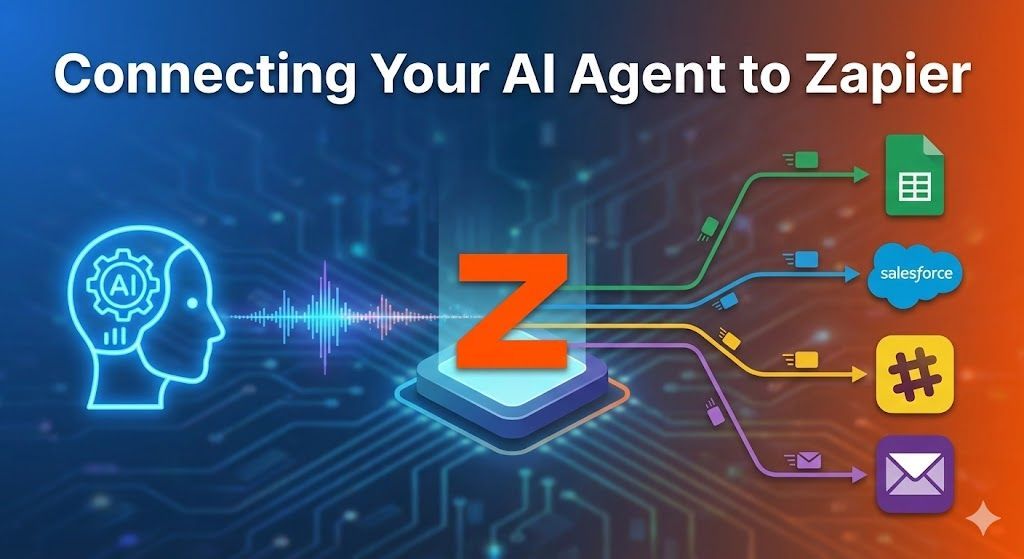
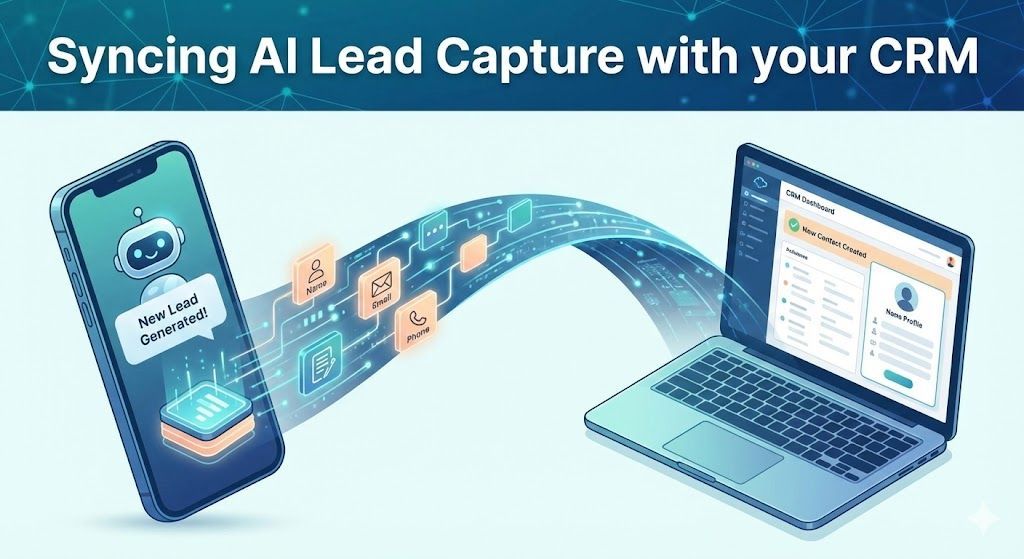
The first half of this process is identical to connecting your CRM. Your chatbot needs to send data out via a Webhook.
If you've already followed our guide on Syncing AI Lead Capture with your CRM, you are halfway there. You can even add this SMS step to that same Zapier workflow.
If not, here's the quick version:
- Create a new Zap with a "Webhooks by Zapier" trigger ("Catch Hook").
- Copy the generated Webhook URL.
- Paste this URL into the final "API Call" block of your chatbot's flow.
- Run through your bot once to send test data to Zapier.
Step 2: Get Your Twilio Credentials
To send a text message programmatically, you need a service like Twilio.
- Sign up for a free trial account at https://www.google.com/search?q=Twilio.com.
- From your console dashboard, buy a new phone number (this will be the number the texts come from).
- Find your Account SID and Auth Token on the dashboard. Keep these handy; they are your API "keys" to unlock SMS capabilities.
Step 3: Configure the SMS Action in Zapier
Now, let's build the bridge.
- In your Zapier workflow, add a new Action step after your trigger.
- Search for and select Twilio.
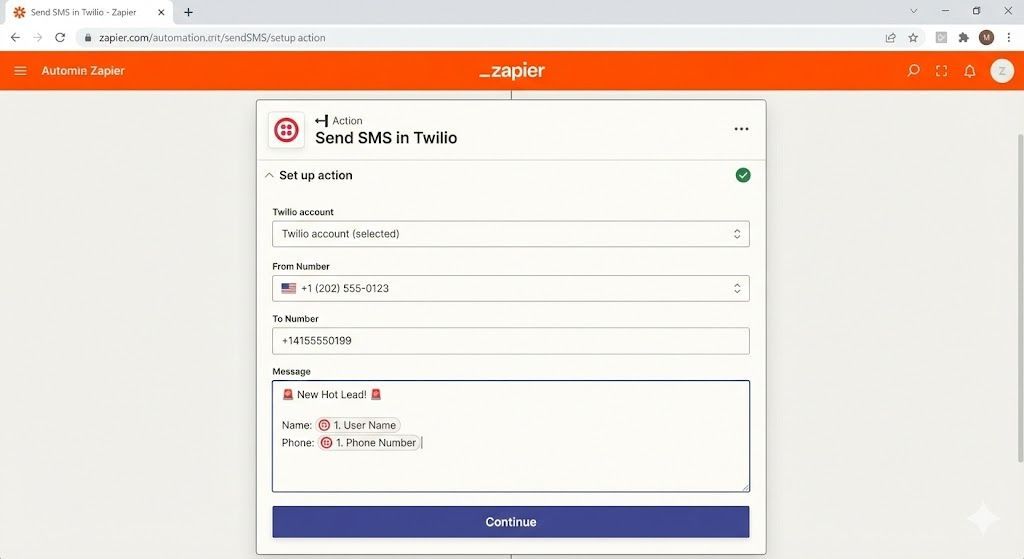
- Choose the event "Send SMS".
- Click to connect a new account. Zapier will ask for your Twilio Account SID and Auth Token. Paste them in to authorize the connection.

Step 4: Craft Your Alert Message
This is where you design the text message you will receive.
- From Number: Select the Twilio phone number you purchased in Step 2.
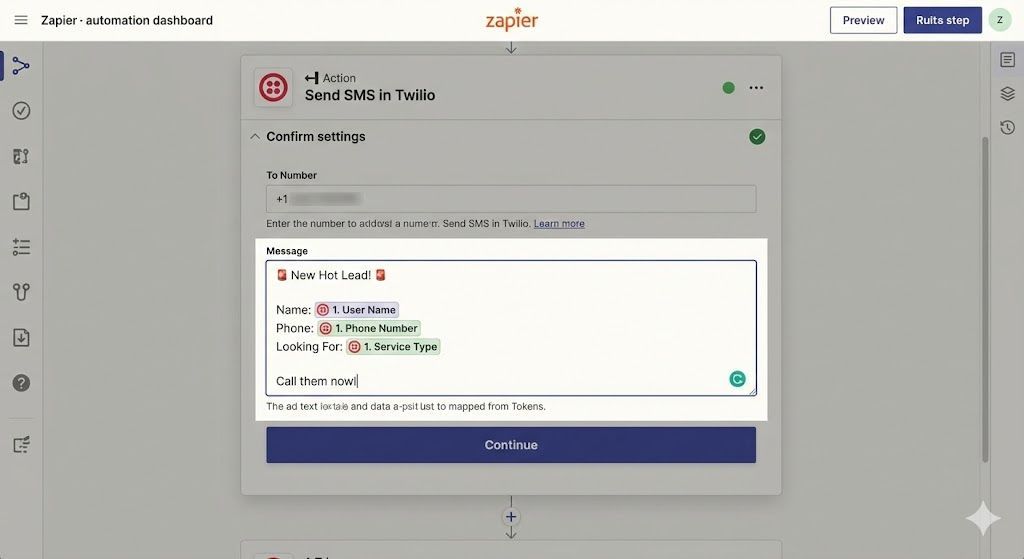
- To Number: Enter your personal cell phone number or your sales manager's number. Make sure to include the country code (e.g., +1 for USA).
- Message: This is the body of the text. You can mix static text with data variables from your chatbot.
A good message format looks like this:
🚨 New Hot Lead! 🚨
Name: [Step 1: User Name] Phone: [Step 1: Phone Number] Looking For: [Step 1: Service Type]
Call them now!

Step 5: Test and Turn On
Click "Test step". In a few seconds, your personal phone should buzz with a text message containing the test data.
If it works, you’ve just given yourself a superpower. Click "Publish".
Now, you will know about every new opportunity the second it happens, giving you the power to follow up faster than any of your competitors.
Take It Further: Round-Robin Notifications
Do you have a sales team? You can use Zapier's "Paths" or a round-robin tool to automatically rotate which sales agent gets the SMS alert, ensuring fair distribution of leads.
Ready to get more hot leads to route? Ensure your bot is asking the right qualifying questions by checking our guide on Top Prompts for Qualifying Home Buyers.