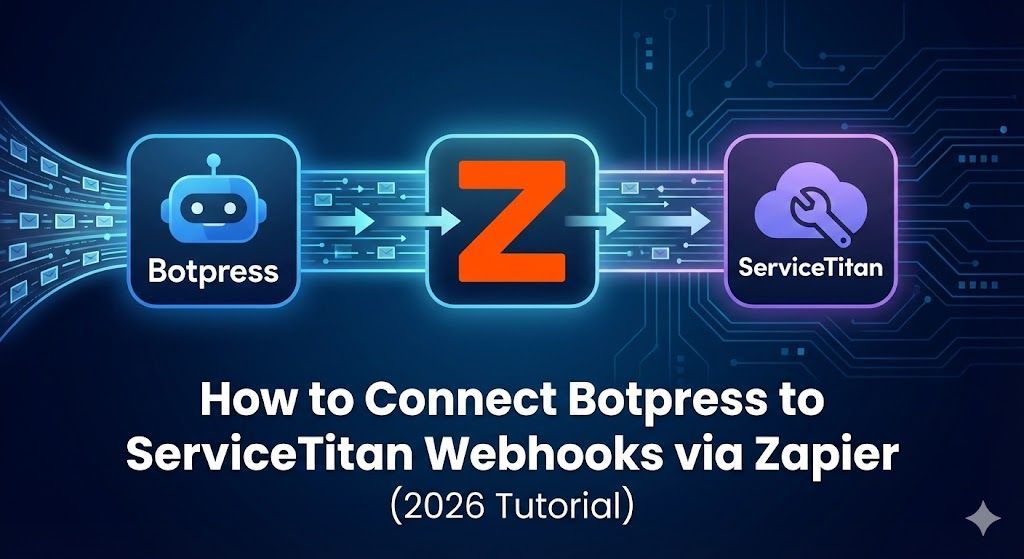
How to Connect Botpress to ServiceTitan Webhooks via Zapier (2026 Tutorial)

In the home services industry, speed to lead is everything. When a winter storm hits Oregon and furnaces start failing, homeowners don't leave voicemails—they move on to the next contractor on Google.
Over the last 25 years of architecting web solutions, I’ve seen countless high-ticket jobs slip through the cracks because the data transfer process was clunky. An AI chatbot is practically useless if your dispatchers still have to manually copy and paste lead data into your Field Service Management (FSM) software.
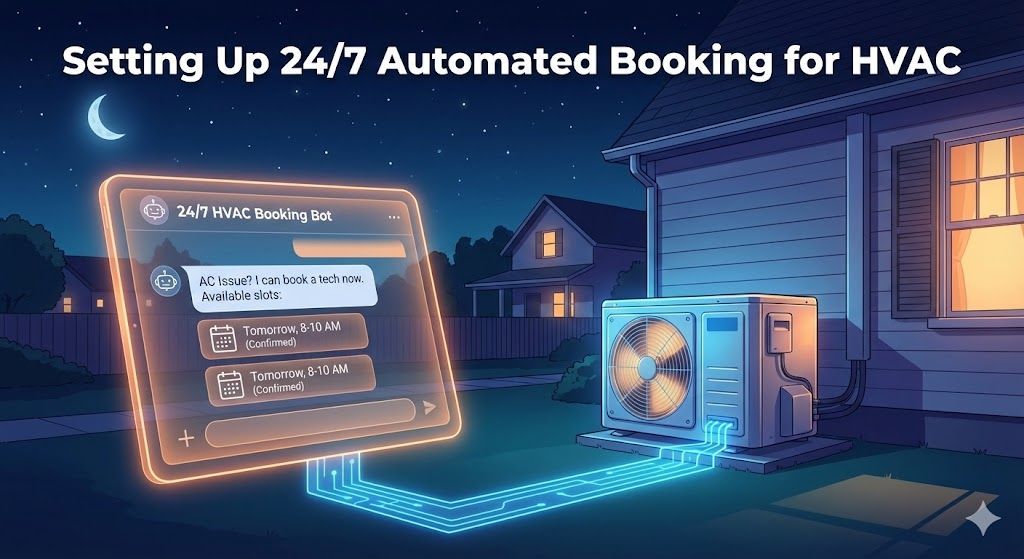
This tutorial breaks down exactly how to connect a Botpress AI agent to ServiceTitan using Zapier webhooks, transforming your website into a fully automated, 24/7 digital dispatcher.
The Architecture: Why Webhooks?
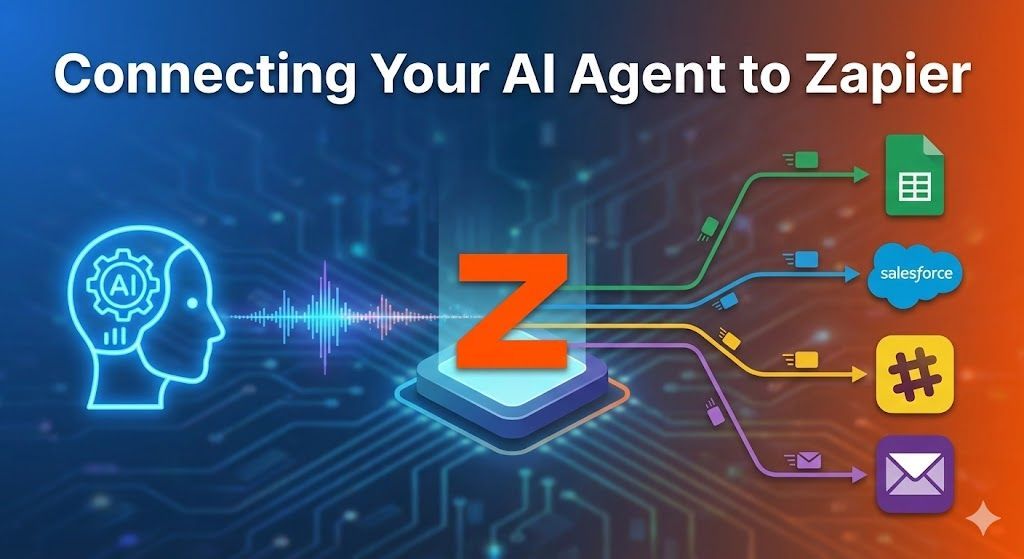
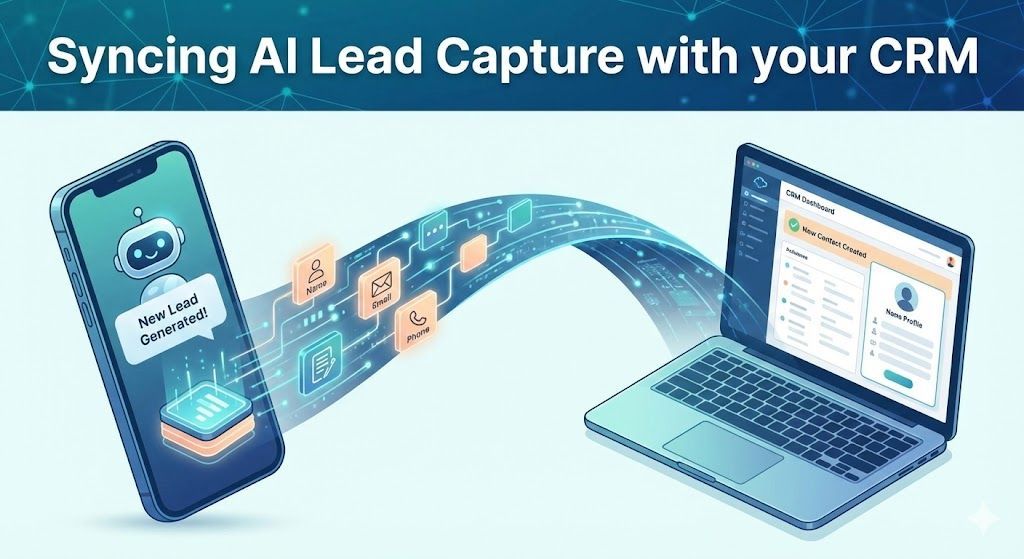
Native integrations can be rigid and often break during platform updates. Webhooks, however, are the universal language of the internet. By using a webhook, Botpress simply "throws" a package of data into the cloud, and Zapier "catches" it to map it into ServiceTitan's specific API fields.
Here is the exact workflow to set this up.
Step 1: Format Your Botpress Payload
Before Zapier can catch anything, Botpress needs to know exactly what to throw. Inside your Botpress Studio, your AI triage bot should already be collecting key variables from the customer.
- Add an Execute Code card at the very end of your lead-capture workflow.
- We need to package your variables into a clean JSON payload. Use the following JavaScript structure:
// Build the payload for Zapier
const payload = {
"customer_name": workflow.customer_name,
"phone_number": workflow.phone_number,
"service_address": workflow.service_address,
"problem_description": workflow.problem_desc,
"is_emergency": workflow.is_emergency
};
// Send the Webhook (We will get this URL from Zapier in Step 2)
await axios.post('YOUR_ZAPIER_WEBHOOK_URL_HERE', payload);
Step 2: Catch the Hook in Zapier
Now, we build the bridge.
- Log into Zapier and click Create a Zap.
- Trigger: Select Webhooks by Zapier.
- Event: Choose Catch Hook.
- Zapier will generate a custom Webhook URL. Copy this URL and paste it back into your Botpress Execute Code card (replacing YOUR_ZAPIER_WEBHOOK_URL_HERE).
- Test the Trigger: Go to your Botpress emulator, run through a dummy conversation, and then click "Test trigger" in Zapier. You should see your JSON payload appear perfectly formatted.
Step 3: Map the Data to ServiceTitan
With the data safely inside Zapier, it's time to create the job ticket.
- Action: Add a new step and search for ServiceTitan.
- Event: Select Create Customer & Location (or "Create Job" depending on your agency's specific workflow requirements).
- Mapping: Click into the ServiceTitan input fields and map the data you caught from Botpress.
- Name -> customer_name
- Phone -> phone_number
- Address -> service_address
- Job Summary -> problem_description
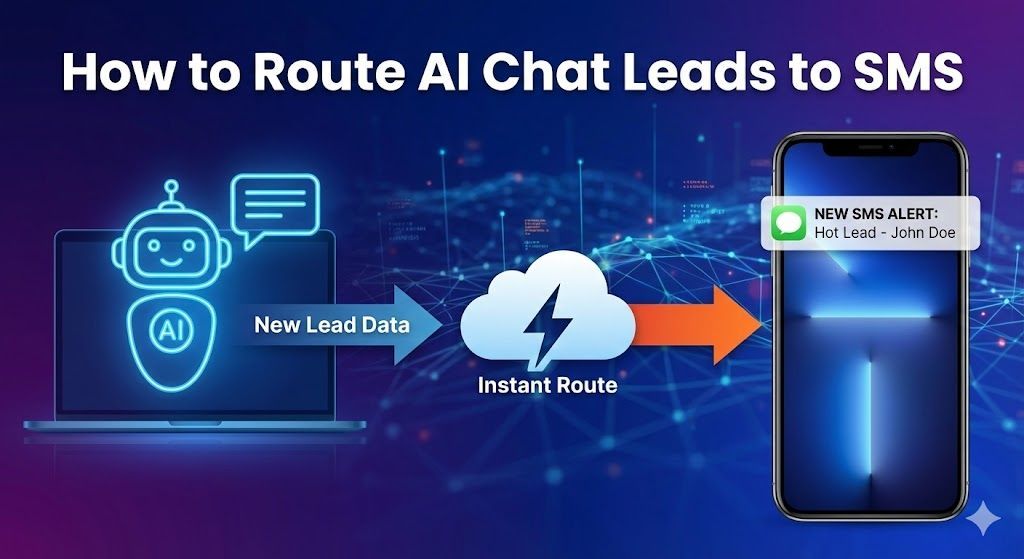
4. The Emergency Flag: Use a Zapier "Filter" or "Path" step. If is_emergency equals true, route the Zap to trigger an immediate SMS alert to your on-call technician, bypassing the standard queue.
The Faster Way: The "Zero-to-Launch" Shortcut
Building the Botpress state machine, fine-tuning the AI prompt to recognize emergencies without hallucinating, and configuring the variables takes hours of trial, error, and testing.
If you want to skip the architecture phase and go straight to deployment, you can download my pre-built logic.
[SkyAgent: Home Services (HVAC & Plumbing)] is a turnkey .bpz template designed specifically for this exact workflow. It includes:
- Pre-configured Triage Routing: Automatically distinguishes between "routine quotes" and "Priority 1 emergencies."
- Field-Service Optimized Prompts: Hard-coded to prevent the AI from giving dangerous DIY repair advice.
- Ready-to-Connect Variables: The payload structure is already built in.
Whether you are a solo contractor looking to automate your site, or an agency looking to scale this solution to unlimited clients with the Agency License, you can have a 24/7 dispatcher live by tomorrow morning.
👉 [Explore the SkyAgent Home Services Template Here]