For an HVAC contractor, a missed call isn't just a missed connection; it's revenue going straight to your competitor.
Your customers don't only have furnace breakdowns or AC failures between 9 AM and 5 PM. They happen at night, on weekends, and during holidays. When a homeowner is sweating in the heat of summer or freezing in the dead of winter, they won't leave a voicemail and wait. They'll call the next company on the Google list until someone answers.
If your website just has a phone number and a contact form, you are losing jobs.
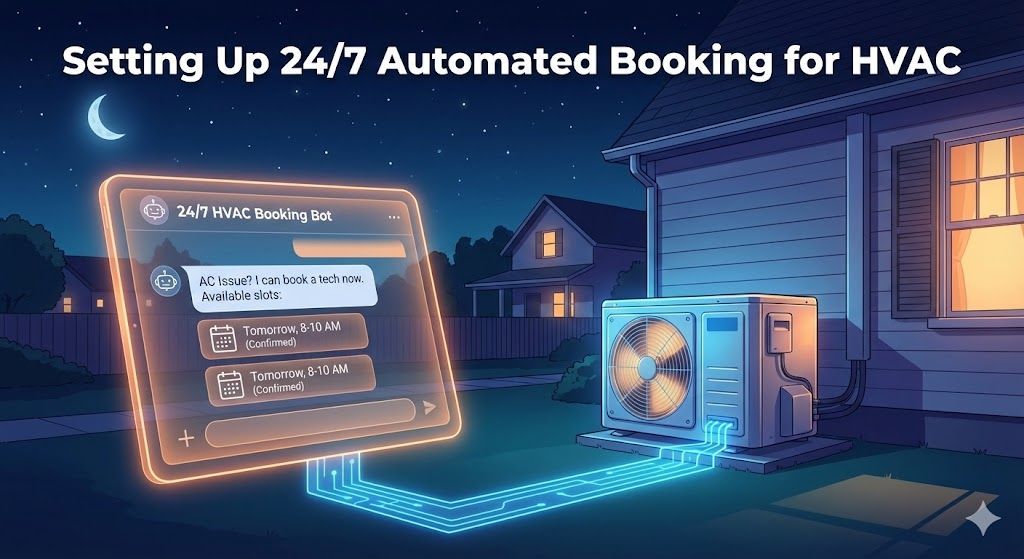
The solution isn't to hire a 24/7 answering service that costs thousands a month. The solution is to turn your website into an always-on booking machine with an
AI Chatbot.
Here is the step-by-step guide to setting up automated booking that qualifies leads, quotes basic service calls, and puts jobs directly onto your dispatch board—even while you sleep.
Why Automate HVAC Booking?
Before we get into the "how," it's crucial to understand the massive ROI of this setup:
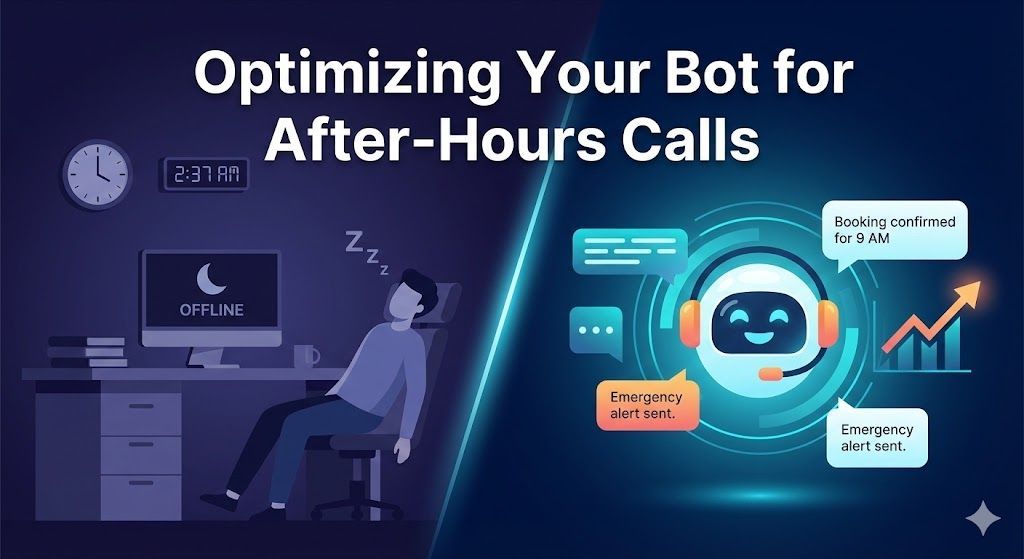
- Capture After-Hours Revenue: Emergency calls often carry the highest margins. An AI bot can capture and book these jobs instantly at 2 AM.
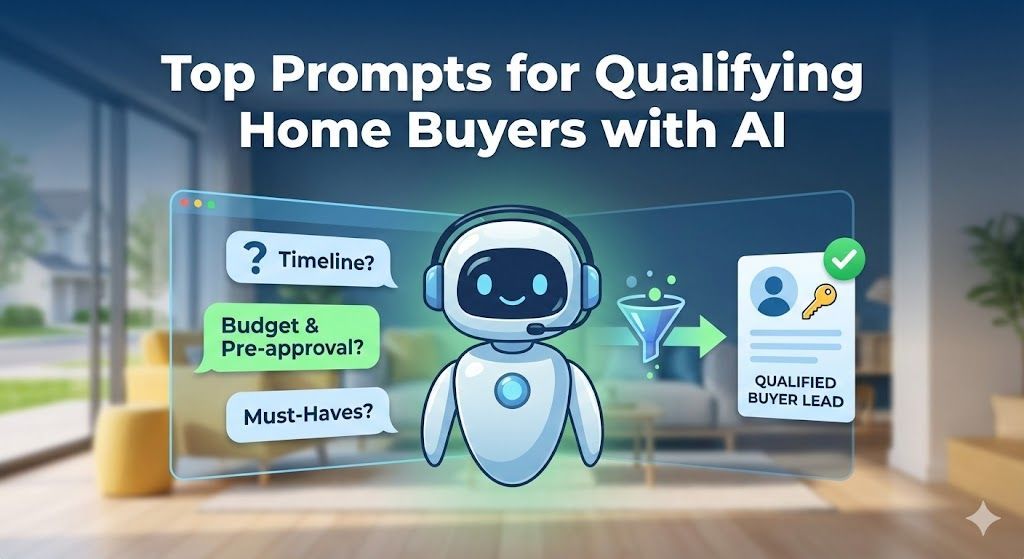
- Filter Out Tire-Kickers: The bot can ask qualifying questions about the issue, system age, and location before a human ever gets involved.
- Reduce Office Admin Work: Your dispatchers spend less time on the phone booking routine tune-ups and more time managing complex jobs and technicians.
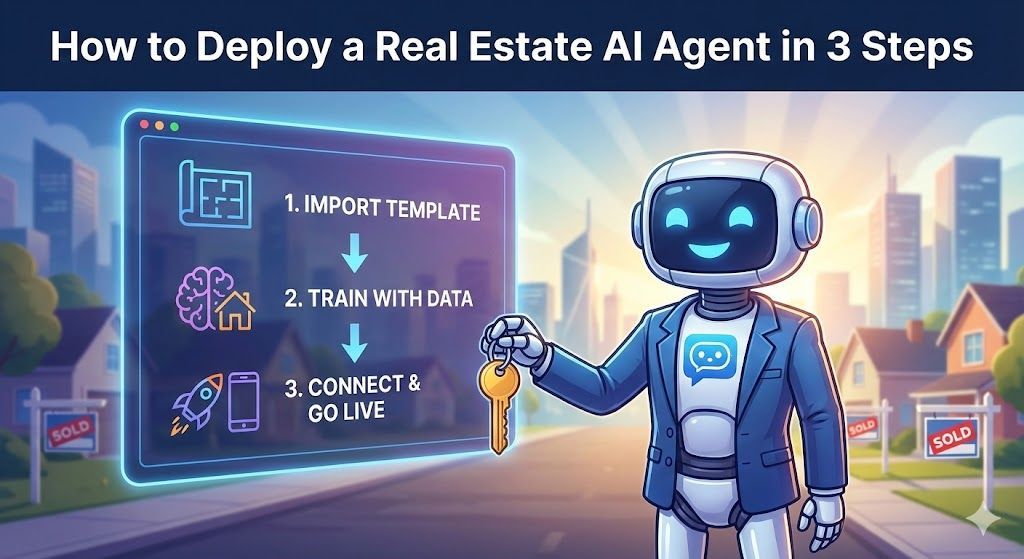
Step 1: Start with a Turnkey Template
Building a booking bot from scratch requires complex logic for handling dates, times, and service types. Don't reinvent the wheel.
Start with our
Home Services AI Agent template. It comes pre-loaded with the conversational flows needed to diagnose common HVAC issues and guide a customer toward booking an appointment. You simply download the file and import it into your visual builder (like Voiceflow).
Step 2: Define Your Service Menu
Your bot needs to know what it's selling. In your chatbot builder, you'll customize the "Service Selection" flow to match your offerings.
Create clear, simple options for the customer to choose from:
- "No Cooling / AC Repair"
- "No Heating / Furnace Repair"
- "Seasonal Tune-Up / Maintenance"
- "Request a Quote for New System"
For each option, you can set the bot to ask specific follow-up questions. For an AC repair, it might ask, "Is the unit making a strange noise, or is it just blowing warm air?" This information is gold for your technicians before they arrive on site.
Step 3: Connect Your Calendar (The "Brain" of the Operation)
This is the most critical step. Your bot needs to know when your technicians are actually free. You cannot double-book slots.
You have two main options for this integration:
Option A: Simple Calendar Sync (Google/Outlook) For smaller operations, you can connect the bot directly to a master Google or Outlook calendar. The bot will read free/busy times and only offer available slots to the customer. Once a time is chosen, it creates a calendar event with the customer's details.
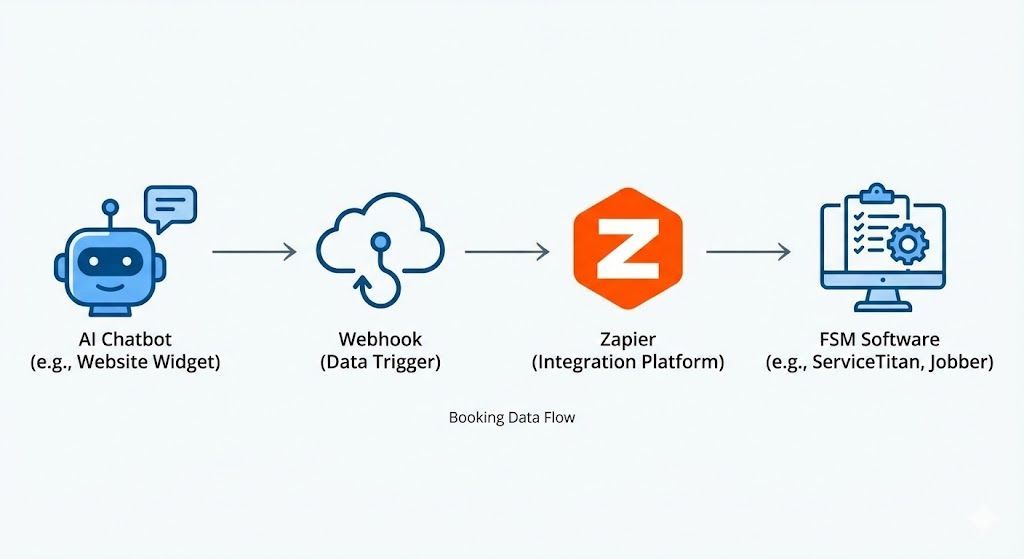
Option B: Field Service Management (FSM) Integration (Recommended) For larger companies using software like
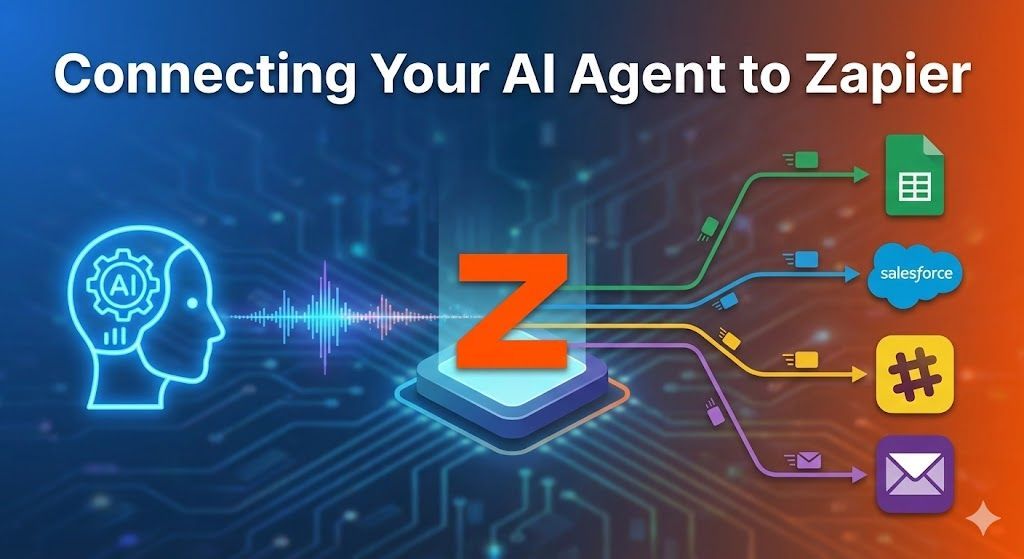
ServiceTitan, Housecall Pro, or Jobber, you'll use a tool like Zapier or
https://www.google.com/search?q=Make.com as a bridge.
- The chatbot collects the booking details (Service Type, Date, Time, Customer Info).
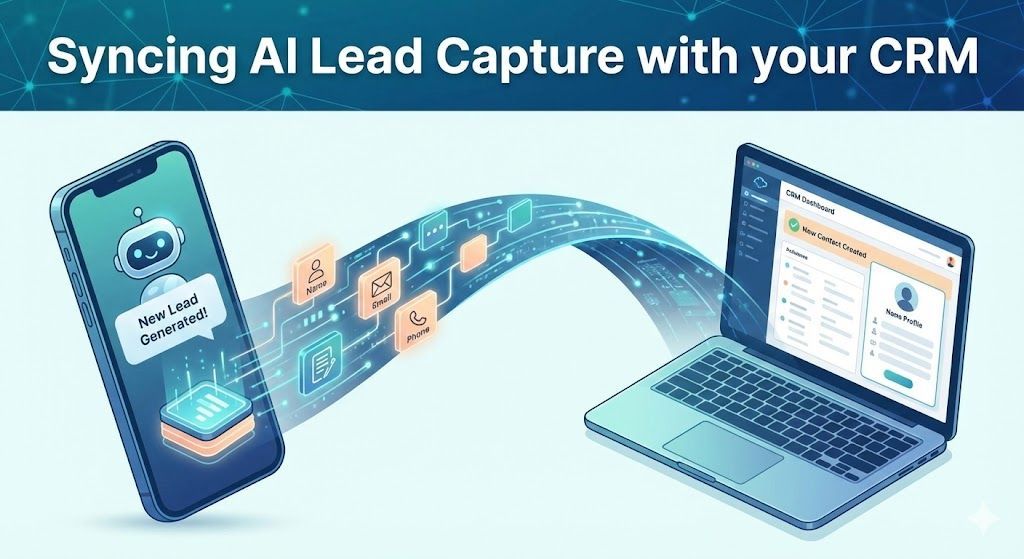
- It sends this data via a
Webhook to Zapier.
- Zapier instantly creates a "New Job" or "Provisional Booking" directly in your FSM software, appearing on your dispatch board.