
Share this article

Connecting Your AI Agent to Zapier: The Ultimate Integration Guide

Your AI Agent is a powerful tool for engaging customers and capturing information 24/7. But if that information just sits in a chat log, its value is limited.


The true power of automation is unlocked when your AI agent can "talk" to the other software you use every day. Imagine this:


  • A lead is captured by your bot and instantly appears in your HubSpot CRM.
  • A customer asks a complex question, and a notification is immediately sent to your team's Slack channel.
  • A booking is made, and it automatically populates a Google Sheet for your admin team.


You don't need to be a developer to build these connections. You just need Zapier.


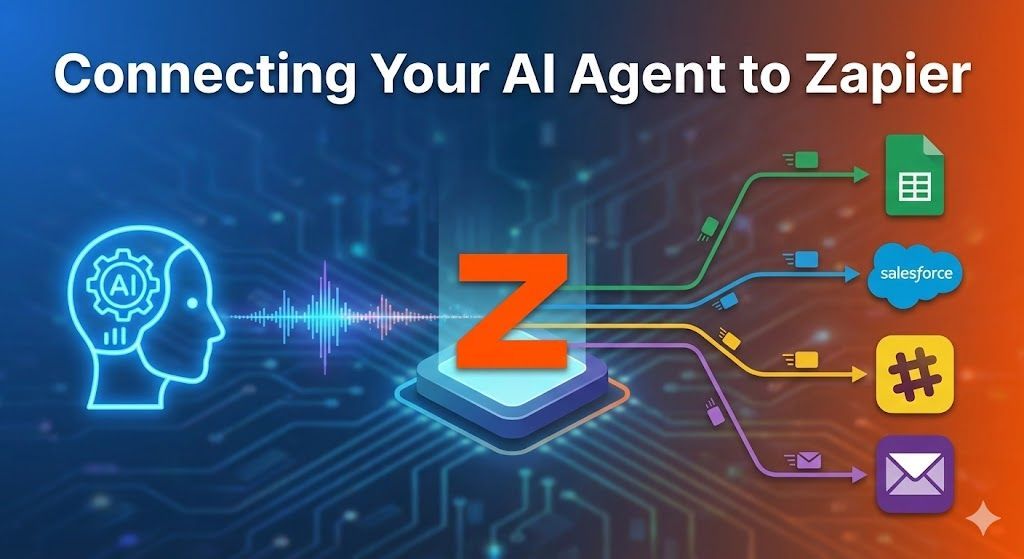
Zapier is the "digital glue" that connects thousands of different web applications. This guide will walk you through the simple steps to connect your Sky Enterprise AI Agent to Zapier using webhooks, opening up a world of endless automation possibilities.


What You'll Need


  • Your active Sky Enterprise AI Agent (loaded into a builder like Voiceflow).
  • A Zapier account (a free plan works for basic integrations).
  • A destination app you want to send data to (e.g., Google Sheets, Slack, a CRM).


Understanding the "Handshake" (Webhooks)


Before we click buttons, it helps to understand the concept. How does a chatbot send data to Zapier?


It uses something called a Webhook. Think of a webhook as a digital "tap on the shoulder."


  1. The Trigger: Your chatbot finishes a task (like collecting a lead's email). It then "taps" Zapier on the shoulder by sending a packet of data to a specific, unique URL.
  2. The Action: Zapier is waiting at that URL. It "catches" the data packet and then runs whatever action you've told it to do, like adding a row to a spreadsheet.


Our templates are pre-configured with the "sender" part of this process. You just need to set up the "catcher" in Zapier.


Step 1: Create the 'Catch Hook' in Zapier


First, we need to tell Zapier to start listening for data.

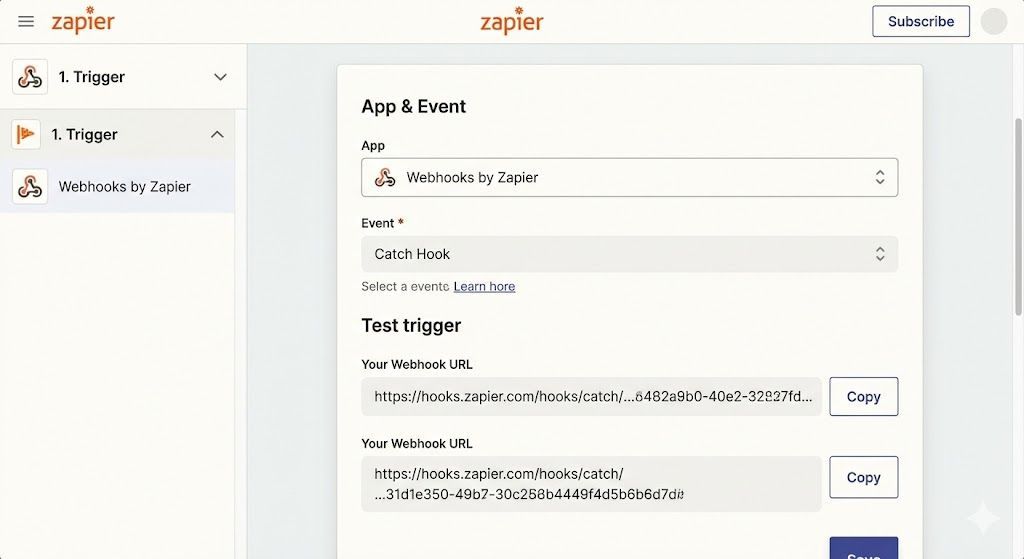
  1. Log in to your Zapier account and click the big orange "Create Zap" button.
  2. For your Trigger app, search for and select "Webhooks by Zapier". (Don't worry, this is a built-in, free feature).
  3. In the "Event" dropdown menu, choose "Catch Hook". Click Continue.
  4. Zapier will generate a unique Custom Webhook URL. It will look something like https://hooks.zapier.com/hooks/catch/123456/abcdef/ . Copy this URL to your clipboard. This is the address where your bot will send the data.


Screenshot of Zapier showing the

Step 2: Configure Your AI Agent's API Block


Now, let's tell your bot where to send the information.


  1. Open your chatbot's visual builder (e.g., Voiceflow) and load your project.
  2. Navigate to the point in the flow where you want to send data—usually at the very end of a conversation after all details have been collected.
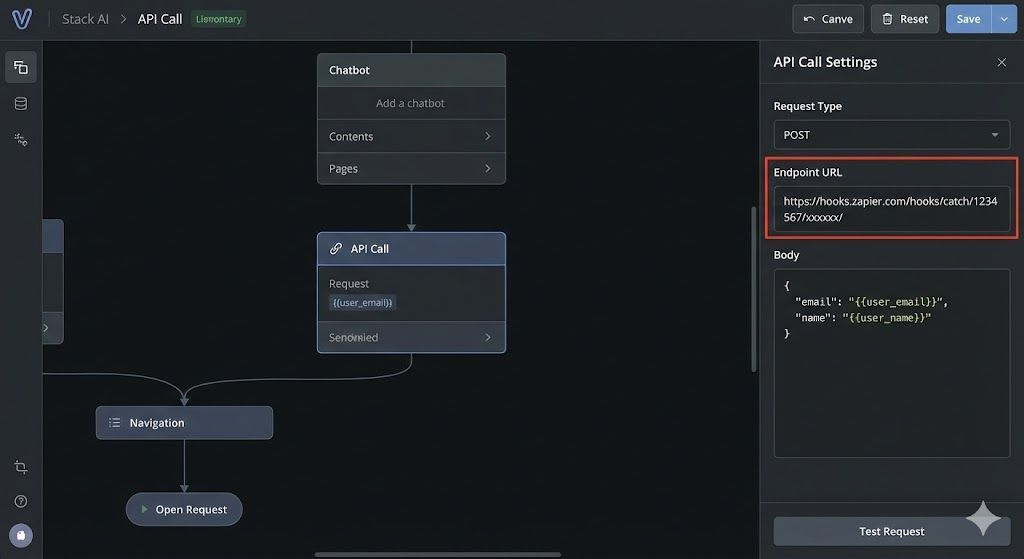
  3. Find the block labeled "API Call" or "Webhook". Click on it to open its settings panel.
  4. In the URL or Endpoint field, paste the Webhook URL you copied from Zapier in Step 1.
  5. Ensure the method is set to POST.
  6. Check the "Body" section. You should see a list of variables being sent (like user_name , user_email ). Our templates have this pre-formatted as JSON, so you typically don't need to touch it unless you're adding custom fields.


Screenshot of the API block settings in a chatbot builder with the Zapier URL pasted into the endpoint field

Step 3: Send Test Data


The connection is set up, but we need to test it to make sure Zapier can "see" the data.


  1. Put your chatbot builder into "Run" or "Test" mode.
  2. Go through the conversation flow as if you were a real user. Provide dummy data when prompted (e.g., Name: "Zapier Test", Email: "test@example.com").
  3. Reach the end of the flow so the API block is triggered.
  4. Go back to your Zapier tab and click "Test trigger".
  5. Zapier will look for the data you just sent. You should see a "We found a request!" message, displaying the dummy data you entered. This confirms the handshake is successful. Click Continue.


Step 4: Choose Your 'Action' App


Now for the fun part—telling Zapier what to do with that data. You can connect it to almost anything.


For this example, let's say we want to add the lead to a Google Sheet.


  1. Add a new Action step in Zapier.
  2. Search for "Google Sheets".
  3. Choose the event "Create Spreadsheet Row".
  4. Connect your Google account and select the specific spreadsheet and worksheet you want to use.


Step 5: Map the Data


This is where you connect the dots. You need to tell Zapier which piece of data from the chatbot goes into which column in your spreadsheet.

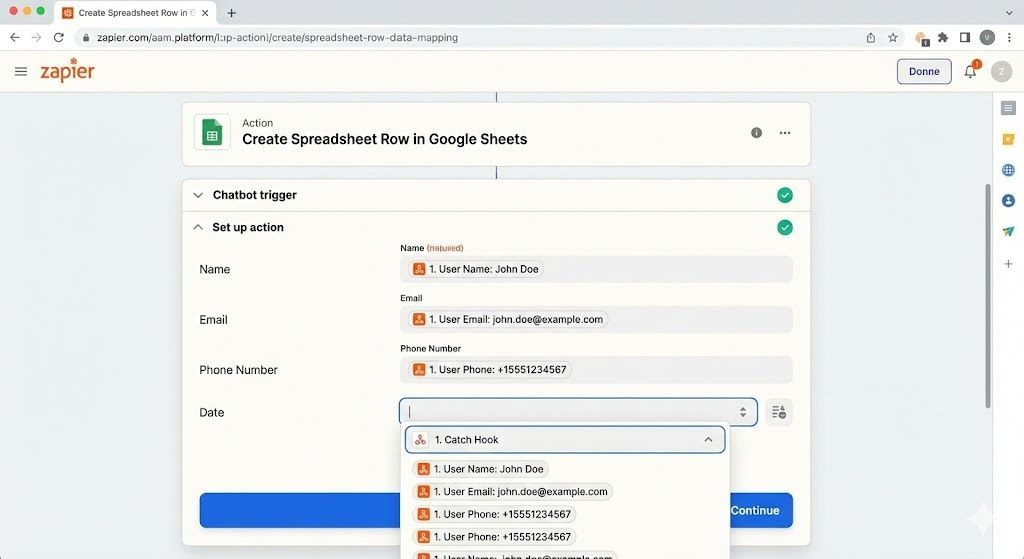
  1. In the Google Sheets action setup, you'll see a list of your spreadsheet column headers (e.g., "Name", "Email", "Phone").
  2. Click into the field for the "Name" column. A list of data from your trigger step (Step 3) will appear. Select the variable corresponding to the user's name (e.g., user_name ).
  3. Repeat this process to map the email variable to the "Email" column, and so on.


Screenshot of Zapier's data mapping screen showing chatbot variables being linked to Google Sheets columns

Step 6: Turn On Your Zap


Once everything is mapped, click "Test step" to send a test row to your Google Sheet. Go check your sheet to see if the data appeared correctly.

If it looks good, click "Publish" in Zapier. Your integration is now live!


Every time your AI agent captures data, it will automatically be sent to your chosen destination.


Popular AI + Zapier Use Cases


Now that you know the basics, the possibilities are endless. Here are some of the most popular workflows our customers build:


  • Instant Lead Notifications: Send an SMS text message or a Slack message to your sales team the second a hot lead comes in.
  • CRM Synchronization: Automatically create or update contacts in HubSpot, Salesforce, Pipedrive, or any other CRM.
  • Email Marketing: Add new leads directly to a Mailchimp or ActiveCampaign audience to trigger an automated welcome sequence.
  • Customer Support Tickets: If a user reports an issue, automatically create a ticket in Zendesk or Freshdesk.


By connecting your AI agent to Zapier, you're not just deploying a chatbot; you're building a fully automated business workflow machine.

Recent Posts

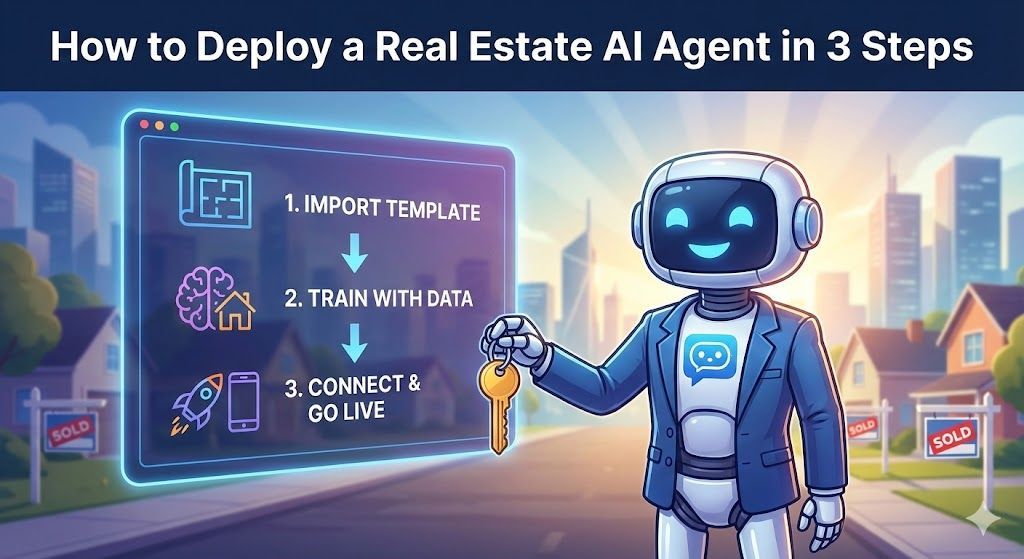
Illustration of a robot agent holding a key, with a screen showing 3 steps to deploy AI in real estate.
February 23, 2026
Learn how to deploy a powerful, 24/7 AI inside sales agent to capture and qualify leads in 3 simple steps—no coding required.
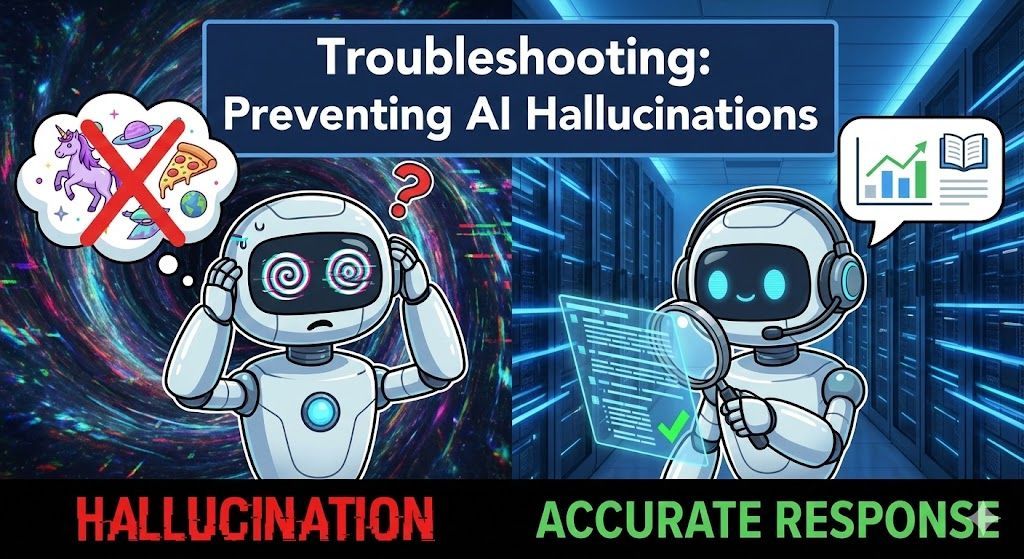
Illustration: Two robot figures. Left: Hallucinating robot with confused expression. Right: Accurate response robot with green check.
February 23, 2026
Learn the root causes of AI hallucinations and follow our 4-step troubleshooting guide to ensure your bot provides accurate, reliable answers every time.
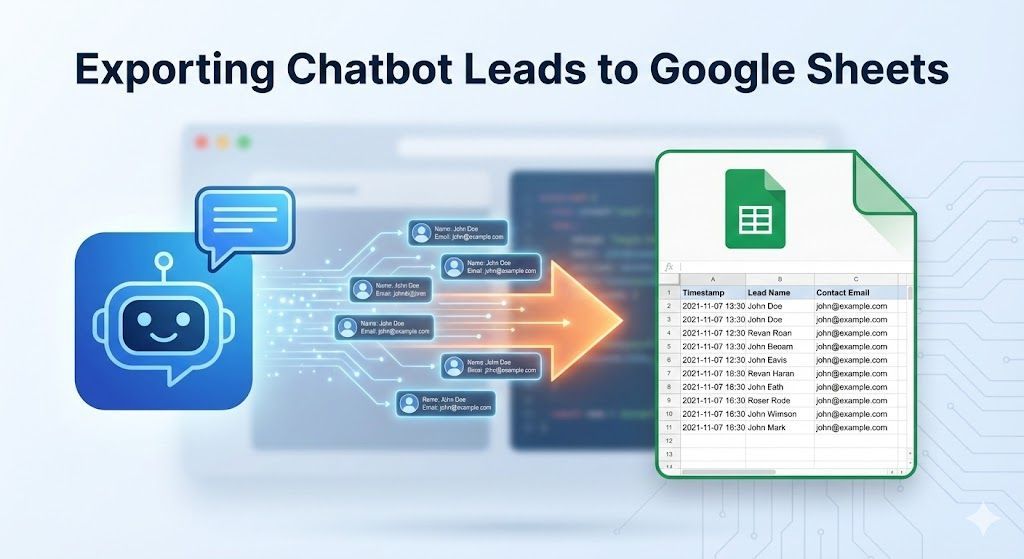
Graphic showing a chatbot icon, data flow, and Google Sheets document, illustrating lead export.
February 23, 2026
Learn the simple, no-code method to automatically export every new AI lead directly into a Google Sheet for easy management and sharing.
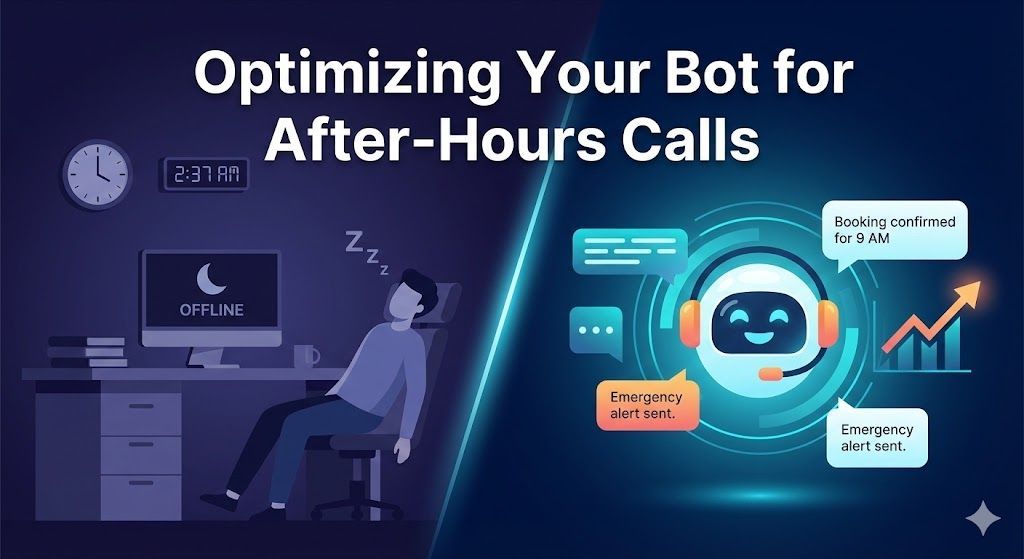
Man sleeping at desk, contrasted with a smiling bot assisting after-hours calls.
February 23, 2026
Missed calls cost you money. Learn how to optimize your AI chatbot to handle after-hours inquiries, capture emergency leads, and set clear customer expectations while you sleep.
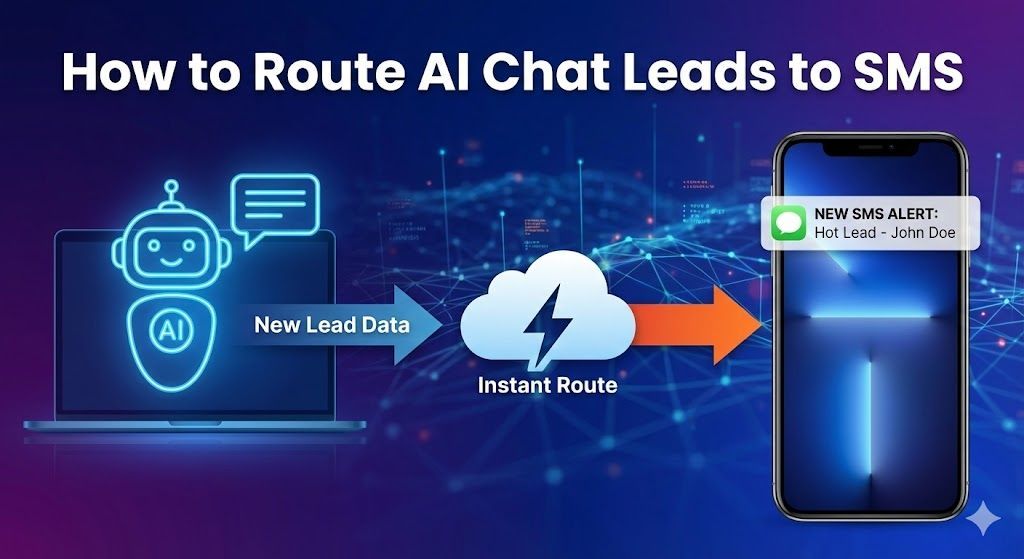
Diagram showing AI chat leads routed to SMS via a cloud service. Blue, purple, and orange colors are used.
February 23, 2026
Stop missing hot leads buried in your inbox. Learn how to set up instant SMS text notifications whenever your AI chatbot captures a new prospect, ensuring you can respond in seconds, not hours.
Night scene: HVAC unit glows with digital booking screen.  Blue lights connect the unit and the house.
February 23, 2026
Stop missing calls and start booking jobs in your sleep. Learn how to set up a 24/7 AI chatbot that qualifies HVAC leads and schedules appointments directly on your calendar, completely on autopilot.
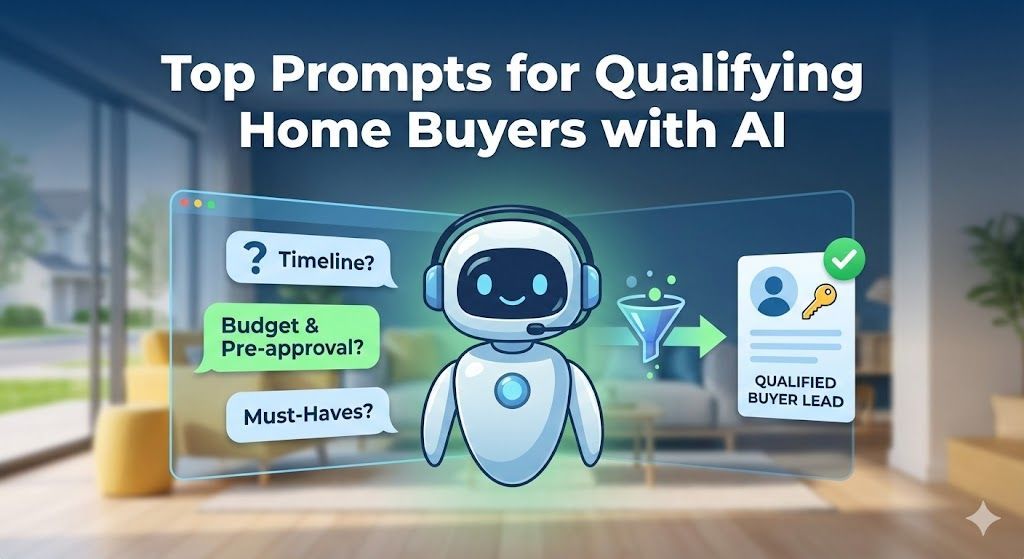
AI robot presenting top prompts for qualifying home buyers. Text on screen includes
February 23, 2026
Discover the best real estate chatbot prompts to automatically qualify home buyer leads 24/7. Stop wasting time on tire-kickers and focus on sales-ready prospects.
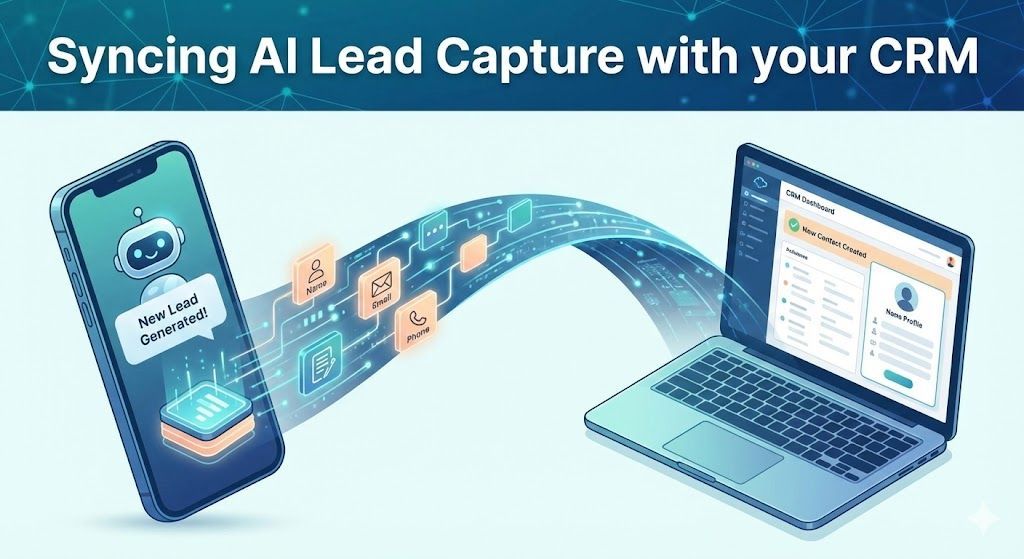
Smartphone with AI lead capture syncing data to a laptop CRM via a digital pathway.
February 23, 2026
Learn how to automate your lead flow by connecting your AI chatbot directly to your CRM. Stop manual data entry and start nurturing leads instantly using webhooks and integration tools like Zapier.
Modern house linked to cloud data and a chat interface displaying real-time data analysis.
February 23, 2026
Learn how to deploy a turnkey Real Estate AI chatbot in minutes. Skip the complex logic mapping and start capturing, qualifying, and syncing leads to your CRM 24/7.

Agency Strategy: Blueprint for test-drive lead generation, with a car visible through a showroom window and a laptop and blueprint on the desk.
February 22, 2026
The Test-Drive Lead Blueprint How to position "Inventory-First" AI agents as a premium automation service for modern auto dealerships.
Show More